🇬🇧 Manage Your Worktrees With Antigravity 2.0

Image from Kimi Lee
Note: une version française est disponible ici.
📕 Git worktrees
Worktrees appeared in Git in July 2025 in the 2.5.0 version (cf. https://github.blog/open-source/git/git-2-5-including-multiple-worktrees-and-triangular-workflows/). However, this feature is not really known by developers. Articles explaining this concept are still being published today, such as this one released in June 2026 on the GitHub blog.
The principle of worktrees is quite simple. Git associates your project with one or more directories (whether inside your Git project or not). This “copy” is a link to your main repository, allowing you to have multiple branches checked out simultaneously in different directories. You can therefore switch between branches without using Git commands like git stash.
With a few commands, understanding worktrees should be easier:
- Creating a worktree for a new feature. I store my worktrees in a specific directory.
git worktree add -b feature/my-new-feature ./worktrees/feature/my-new-feature origin/main
- List worktrees
git worktree list

Following these modifications, the current branch stay the main branch. Changes can therefore be made without impacting this worktree. This is one of the main advantages of using worktrees. It avoids the need to switch branches by storing your changes in git stash.
- Switching to a worktree is transparent: once moved into the directory, you are directly on the associated branch, without needing Git commands.
cd worktrees/feature/my-new-feature/
-
You can make your changes, add them with
git add, and then push to your repository withgit push. -
Once the pull/merge request (PR/MR) is created and merged, the worktree can be removed using the
git worktree removecommand.
🤔 What about Antigravity?
With the growth of agentic AI-assisted development, it is easy to ask several agents to make changes in parallel to your project. However, if the changes are significant and impact the same files, you risk seeing conflicts appear.
In Antigravity 2.0, it is possible, via an option available under your request, to specify that the work can be done in a Git worktree.

Antigravity creates the copy of your worktrees in its configuration directory /Users/xxx/.gemini/antigravity/worktrees. After moving there using the cd command, you will find the modified files and can work on the requested feature.
In the Antigravity IDE, worktrees are visible graphically in the “Source control” view.
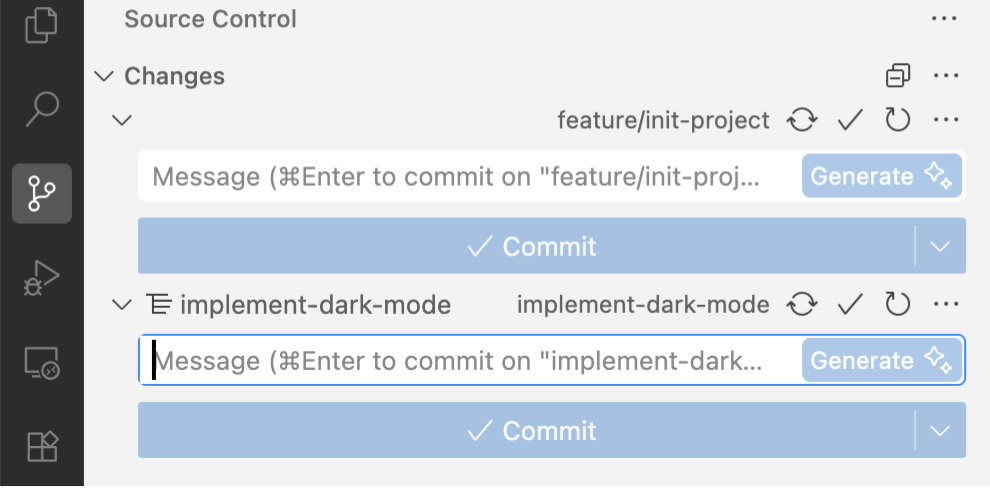
With Antigravity, the focus is on managing and orchestrating agents. By isolating project evolutions in Git worktrees, project development can be further accelerated and parallelized without having to fight with Git conflicts.
🚀 A Skill?
If you agree with the change made by Antigravity, you can ask to commit and push the code. Antigravity does this very well, but the worktree is not deleted. Perhaps this is not your practice, but I prefer to delete the worktree directly and manipulate Git to return to the branch if something is detected in the MR.
To clean in the worktrees after validating changes, I created this skill:
--
name: finalize-feature
description: Clean up the current git worktree after a feature branch is successfully validated, committed, and pushed.
---

# Finalize Feature Skill
Use this skill when the user has approved your changes on a feature branch and requested to clean up the current working directory / worktree.


## Instructions
1. **Verify git status**:
  Ensure all local changes are fully committed and pushed to the remote repository.
  - Run `git status` to verify the working tree is clean.
  - Run `git log -n 1 @{u}` or check `git status` to verify there are no unpushed commits.

2. **Retrieve paths**:
  - Current worktree path: `$(pwd)`
  - Main repository path: Run `git rev-parse --git-common-dir` and resolve it to its parent directory.

3. **Navigate to the main repository**:
  Change directory to the main repository. For example:
  `cd /Users/xxx/dev/git/your-project`

4. **Remove the worktree**:
  Delete the worktree directory using git worktree command:
  `git worktree remove <worktree-path>`
  For example:
  `git worktree remove /Users/xxx/.gemini/antigravity/worktrees/your-project/feature-branch`
When I ask to push the code, the Skill is correctly used and, quoting Antigravity, “The repository is clean and up to date with the remote branch” and “The temporary worktree has been fully and cleanly removed.”

💡 Antigravity & worktrees
The use of worktrees by Antigravity brings another advantage to accelerating our project development and improving the Developer Experience (DX) by reducing the charges associated with managing potential conflicts that could come when using agents in parallel. I wasn’t a fan of Git worktrees, but with the integration of agentic AI and the way we orchestrate agents to make our projects evolve, I’m sure that this feature will become much more popular 😁.